1. How to download? |
|
|
Redaction v.2: zxc from 2019-08-19 15:09
|
You must have a torrent application for pc or on your mobile device. When you finished downloading and installing an torrent application proceed to step 1.3 by the way I'm using uTorrent
|
Redaction v.5: zxc from 2025-01-13 15:32
|
Find the torrent download button and click it.(usually it is on the right side of the description of an apllication) and wait for it to finish downloading.
|
Redaction v.3: zxc from 2024-02-08 00:23
|
When you click your torrent file it will open the TORRENT PC APP (uTorrent). Select path to download and wait for it until you finished downloading. But make sure that you dont close the TORRENT PC APP for continuous seeding for everyone.
|
Redaction v.5: zxc from 2024-12-09 18:33
|
Before you start the download, you can change the filename save path 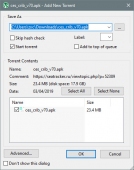
|
Redaction v.8: zxc from 2026-06-03 17:25
|
Registered users have 5 daily downloads. Trust seeders have 15 daily downloads. If you want to remove limit >> GET VIP
|
Redaction v.4: zxc from 2022-02-06 06:35
|
Also you can see step by step animation of downloading Enjoy downloading!!! click me [GIF]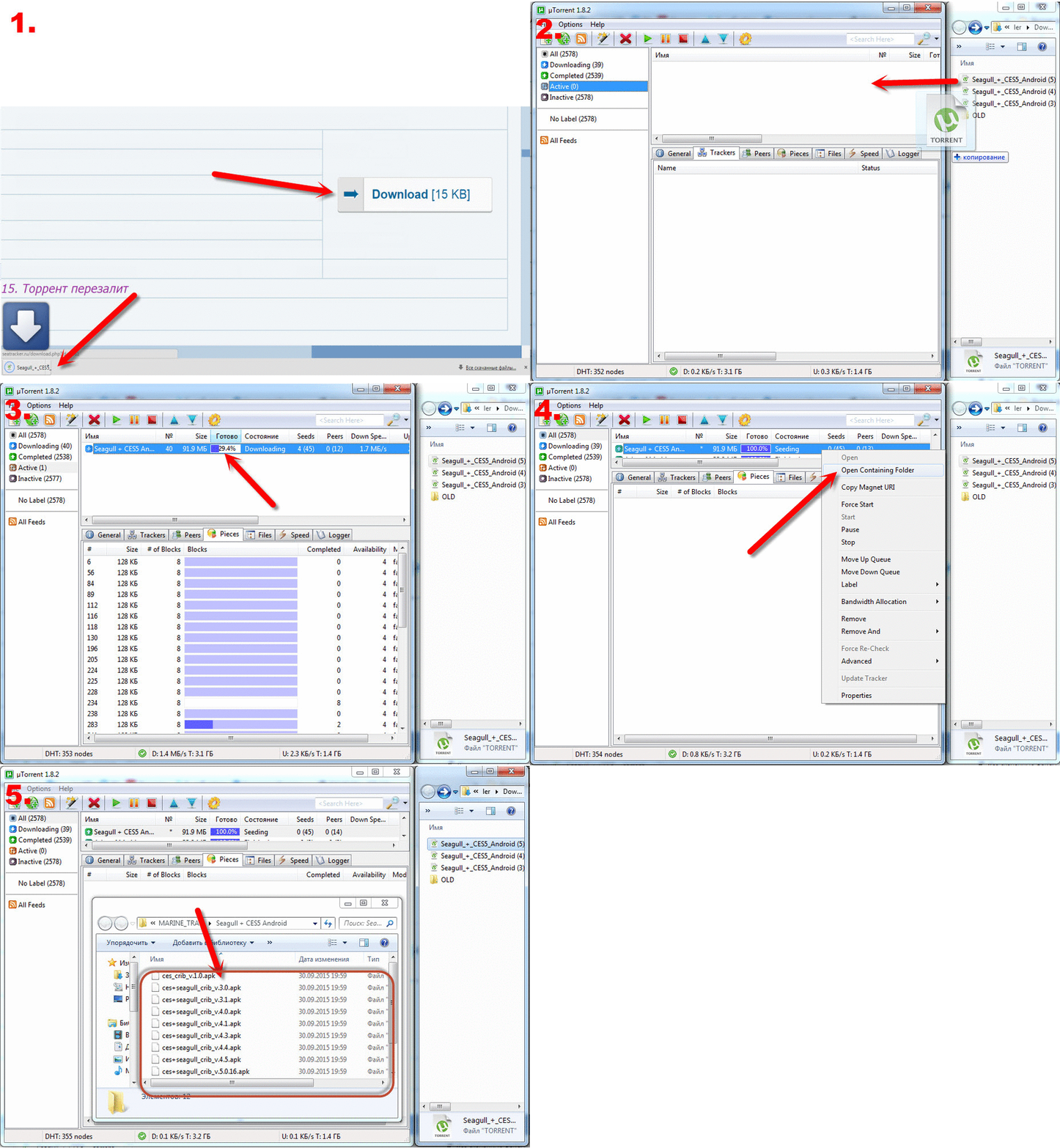
|
Redaction v.4: zxc from 2023-08-15 08:02
|
|
|
Redaction v.2: zxc from 2024-08-17 07:51
|
|
2. How to create torrent?
|
To create a torrent, open the uTorrent client and select the "Create new torrent ..." option in the "File" menu. Or select the wand button on the toolbar. Or we type on the keyboard a combination of hot keys: Ctrl + N
|
Redaction v.1: zxc from 2021-02-13 22:37
|
The torrent creation dialog will appear. If there should be only one file in the distribution, press the SELECT FILE button and specify the path to it in the window that appears (select the file itself and click Open).
If there should be several files in the distribution, press the button SELECT FOLDER (all files should be in one folder, and there should not be anything superfluous in this folder).
It is highly recommended to check if there are any hidden or system files in the shared folder, for example, desktop.ini, Thumbs.db and the like. Such files can be changed by the operating system without your knowledge, and then the torrent will have to be recreated, otherwise it will simply not be possible to remain a full seed on the distribution.
To see hidden or system files, it may be necessary in Windows Explorer (aka My Computer) to select Tools > Folder options ... > View > Show hidden files and folders, and disable the Hide protected system files checkbox there.
After making sure that all the necessary files are in the distributed folder, we can return to uTorrent and click the Select folder button: Note: in new versions of the client (2.0 and higher) it is recommended to check the Save file order checkbox, as shown in the screenshot above.
|
Redaction v.2: zxc from 2021-02-13 22:38
|
We are looking for a folder with our file. Then click on the desired file and click "Open"
|
Redaction v.5: zxc from 2021-02-14 01:00
|
Torrent settings: Exclude - used when creating a multi-file torrent to exclude unnecessary files / folders. To do this, enter the name of the excluded file / folder in the field and, if there are several of them, enter it, separating the names with a vertical line | Trackers - leave blank or you can add a record of our tracker: http://bt-st.org/ann.php?uk=PASSKEY http://seatracker.org/bt/announce.php?uk=PASSKEY You can find PASSKEY value in your profile. Trackers are automatically registered in the torrent file after you have uploaded it to the site and downloaded it again to your client. Part size - in most cases nothing needs to be changed here, uTorrent automatically determines the optimal part (block) size based on the volume of the entire torrent. But if we want to reduce the size of the torrent file (the tracker has restrictions on its size), you can specify the maximum allowable size of 15mb. Private torrent - this parameter prohibits downloading via DHT check if you set a download limit by reputation. Web seed - leave blank. Start seeding - check. When you set it, the torrent will automatically start immediately after the completion of the torrent creation, and if you specified the tracker correctly, the torrent will turn green. However, in order to take statistics into account, it must first be registered on the tracker. Now we press the button "Create and save in ..."
|
Redaction v.10: zxc from 2025-03-28 16:22
|
It remains to wait until the torrent is created and specify the folder where you want to save the torrent file. Click "Save".
|
Redaction v.4: zxc from 2021-02-13 22:40
|
Important! Don't make the names of both the torrent itself and the files uploaded too long. Problems may occur with some torrent clients
|
Redaction v.4: zxc from 2021-02-14 00:59
|
|
3. How to post new release and start seeding? |
To create a release, you need to go to the category corresponding to your topic and click the button 
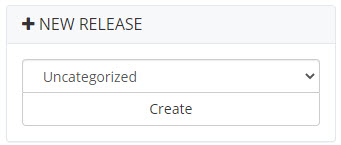
You can also create the release from the home page. In the left menu find the window for creating a new release
|
Redaction v.7: zxc from 2023-08-15 08:04
|
Fields marked with a red asterisk are required
|
Redaction v.2: zxc from 2021-02-13 22:29
|
If the release form is completed, all the required fields are filled in, a torrent file is added - then click the "Continue" button. You will be taken to the editor where you can make additional edits. Be careful when adding / removing tags. Each opening tag must have a closing tag, but there are exceptions. More about bbcode tags https://seatracker.org/faq.php?mode=bbcode
|
Redaction v.1: zxc from 2021-02-13 22:30
|
After you have created and saved your release, you need to download your torrent file and start it. The torrent client will prompt you to overwrite the tracker list—be sure to agree. After that, you will appear in the list of seeders for your upload. Otherwise, you will get the error Seeder not seen: Never.
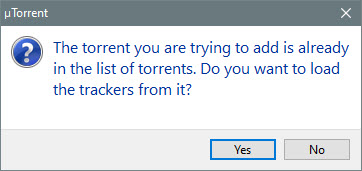
-Important: You can skip the previous step of downloading your torrent and overwriting the trackers if, when creating the torrent file in the client, you correctly specified our tracker and checked the box Start seeding. The tracker list should look like this (be sure to leave an empty line between trackers if there are several): 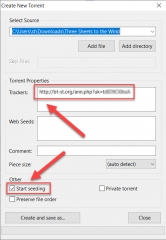
Actual trackers: http://bt-st.org/ann.php?uk=PASSKEY http://seatracker.org/bt/announce.php?uk=PASSKEY
You can find the value of the PASSKEY parameter in your profile.
|
Redaction v.22: zxc from 2025-11-25 17:12
|
If after creating the release you are on the list of leechers, and the torrent in the torrent client has the status Loading 0 %, then most likely you incorrectly specified the path to the source files when creating the torrent. To avoid this, check the box Start seeding as described in paragraph 3.4
|
Redaction v.2: zxc from 2024-11-12 17:38
|
A step-by-step video on creating a torrent and decorating a distribution from Arcan:
|
Redaction v.2: zxc from 2021-02-13 22:35
|
|
4. How to reupload torrent? |
In order to re-upload the torrent, ask the moderator to set the distribution status to * - not checked . You will be able to edit the theme. And then step by step as in the screenshot: 
|
Redaction v.3: zxc from 2023-08-15 08:06
|
|
5. How to rise reputation? |
Recently there was established limit in accordance with REPUTATION LIMIT for downloading of some releases
|
Redaction v.1: zxc from 2019-08-19 15:17
|
The easiest way to earn reputation is to share with other users any book, video or program, which is not exist on the tracker, with a nautical theme, and which is really needed by others. Reputation will grow up - right before your eyes! Or you may ask the releaser via Private Mail and he probably help you to download this release.That is his prerogative to install any limitation or remove them.
|
Redaction v.4: zxc from 2019-08-19 15:21
|
What affects reputation and how to increase it? - - The creation of new releases. Reputation will increase depending on how many users click THANK U (+1 reputation for each thanks)
- - Run the query in the table of orders. All votes will be added to your reputation.
- - You can affect the reputation of users using the + and - buttons under the comments and themes
|
Redaction v.3: zxc from 2020-10-23 18:28
|
The most reputation limits are not exceed 1-5 points. Believe me - to earn these points will be much easy then you will go somewhere and buy this book or video or program.Yes, we know that it limits approach of users - but as you can see most of the users just downloading and even do not seeding. That is why here were emposed some limitations, which push users to be more active and fill up site with some content.
|
Redaction v.2: zxc from 2019-08-19 15:20
|
Do not try to increase your reputation with using fake accounts - it is very easy to calculate who is who. Those users who violate this rule - will be panished with negative reputation.
|
Redaction v.2: zxc from 2019-08-19 15:21
|
|
6. How to rise download limit? |
Many of you have already noticed that a certain number of torrents are available for download per day, but not many are aware of how to increase the number of available downloads or remove this limitation altogether.
|
Redaction v.1: zxc from 2021-02-13 22:41
|
You can see the current daily limit in your profile or in the user panel on the left of the main page 
|
Redaction v.6: zxc from 2023-08-15 08:07
|
Formula for daily limit: DL = (OL + T + R + S + M + TS + V) Where DL - Total limit, OL - Standard limit (equal to 5 for all) T - Bonus for created releases (+5 immediately and +1 daily for each release) R - Bonus for the rating (The rating formula is equal to the RATIO of the uploaded to the downloaded) S - Bonus for stars (depends on reputation | from 1 to 300 max) M - Bonus for awards (+1 for each medal) TS - Bonus of 15 downloads for users from the group Trust Seeder . To get into this group, you must have more than 50 active torrents. V - VIP bonus. You can get VIP on the page https://seatracker.org/vip.php
|
Redaction v.4: zxc from 2024-11-14 09:34
|
Ways to increase the daily limit: 1. Expensive and fast http://seatracker.org/vip.php For 10-20$ you get VIP status with access to a closed section and unlimited downloading of any torrents. When paying for a lower amount, you will only receive additional downloads at the rate of 0.025$ - 0.1$. for 1 download + disable ads on all pages
2. Do not stop seeding and keep active as many torrents as possible increasing your rating. If the number of active torrents exceeds 50, then you will be automatically added to the group Trust Seeder and thereby increasing your daily limit by 15 torrents per day
3. Exchange seed-bonuses and increase your rating click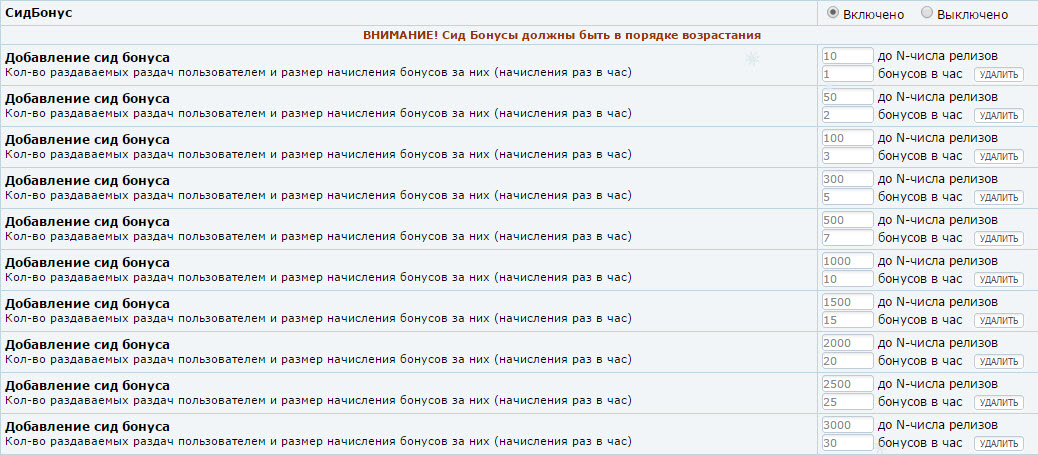 click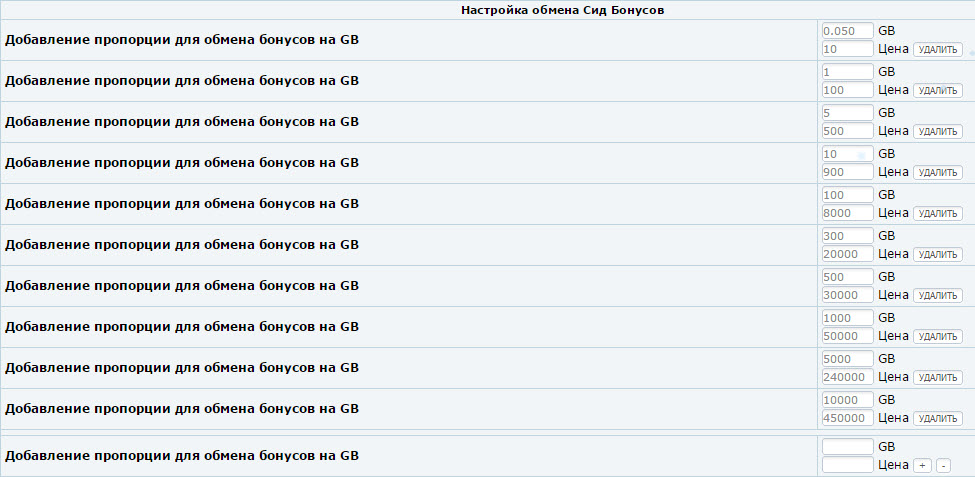 Seeding your hands increases the rating well, which affects the limit
5. Earn reputation > 100 and get access to the hidden section
6. Execute a request in the order table http://seatracker.org/order.php and get an increase in reputation depending on the number of voters
7. Collect medals https://seatracker.org/medals.php and get +1 to the limit for each medal
8. Earn reputation https://seatracker.org/reputation.php
9. When you create a release and receive the status √ - checked you immediately get +5 additional downloads, as well as an increase of +1 to the limit
|
Redaction v.6: zxc from 2023-08-15 08:08
|
Limits are updated at 23:59 MSK.
|
Redaction v.4: zxc from 2023-08-15 13:12
|
|
7. How to obtain Media File information? |
When releasing media in sections Video for Seaman or Audio Materials, you need to provide technical details such as resolution, bitrate, frame rate, etc.
|
Redaction v.2: zxc from 2026-06-02 17:02
|
Method 1: Windows built-in tools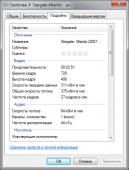 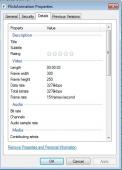 1. Find the media file. 2. Right-click on it. 3. Select "Properties". 4. Open the "Details" tab. 5. Check technical information (resolution, duration, audio/video parameters).
|
Redaction v.8: zxc from 2026-06-03 16:36
|
Method 2: MediaInfo software (recommended)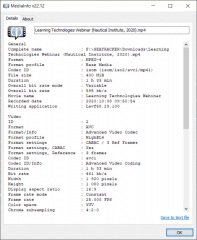 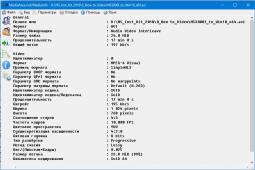 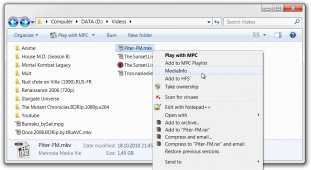 1. Download and install MediaInfo: https://mediaarea.net/ru/MediaInfo/Download (Windows / iOS / Android / Linux) 2. Run the program. 3. Open the required media file. 4. Choose display mode (Tree / Text). 5. Copy the full technical information of the file. 6. Paste it into the MediaInfo field in the release form or hide the information under a spoiler.
Recommendation: use MediaInfo — it provides the most accurate technical data.
|
Redaction v.9: zxc from 2026-06-03 16:44
|
How to get total duration of all videos in a folder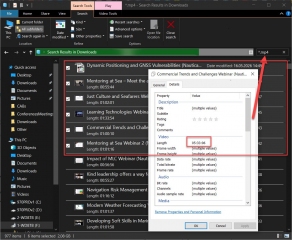 1. Open MediaInfo (PC version). 2. Select all video files in the folder (Ctrl + A). 3. Drag and drop them into MediaInfo. 4. Switch to "Text" or "Sheet" view mode. 5. Depending on the mode, total duration may be shown at the bottom of the list. 6. Alternative 1: select all video files in the folder (if files are located in subfolders, use search by file type or extension), then open "Properties" — in some Windows versions the total duration of all selected files may be displayed (works for Windows OS only). 7. Alternative 2: use VLC Media Player or file managers (e.g. Total Commander) with plugins to calculate total duration.
|
Redaction v.8: zxc from 2026-06-03 16:41
|
|
|
Redaction v.5: zxc from 2026-06-02 17:04
|
|
8. How to make screenshots? |
According to section 8 of the release design rules, a prerequisite for creating a distribution on the tracker is the presence of a poster, screenshots and content. There are several ways to take screenshots. We list from old to new methods below point by point
|
Redaction v.1: zxc from 2023-12-30 14:13
|
To take a screenshot, you can use standard Windows tools. Press the PrtSc (Print screen) btn, then open Paint and paste the screenshot using CTRL+V from the clipboard there. The disadvantage of this method is that after inserting you need to edit the image and crop the edges.
|
Redaction v.2: zxc from 2023-12-30 14:13
|
In the Adobe Acrobat PDF Reader program, a screenshot is taken like this: Editing -> Take a picture -> Left click on page ( the page will go to the clipboard). Open Paint and paste an image from the buffer using the hotkey CTRL + V
|
Redaction v.1: zxc from 2023-12-30 14:14
|
If you need more functionality and convenience in creating screenshots, we recommend mastering the program SnagIT. For example, it allows you to create long screenshots by interacting with the scroll bar of the screen. There is a built-in editor for highlighting areas, overlaying arrows and other symbols. 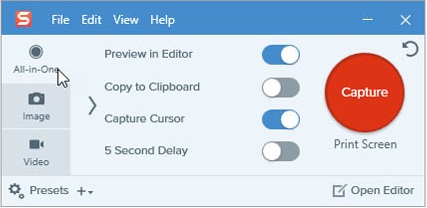 How to use? - Click the Capture button - Move the cursor to the upper left edge of the page, hold down LMB and move the cursor to the lower right corner of the page, release LMB - You can also take a screenshot with a single left click on the page and then trim off the excess in the editor
|
Redaction v.2: zxc from 2023-12-30 14:14
|
!PDF/DJVU/EPUB ONLY. The most convenient and fastest way to create screenshots is using our built-in Screenshot Tool. You can find this tool on the release creation page and it looks like: 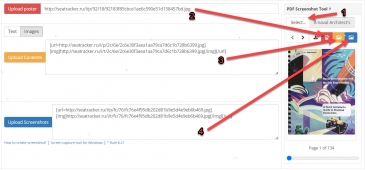 How to use? 1. Select document 2. Create a screenshot using red button, it will automatically be inserted into the Poster field 3. Create a screenshot using orange button, it will be automatically inserted into the Contents field 4. Create a screenshot using blue button, it will be automatically inserted into the Screenshot field
You can scroll through the pages of a book in 3 ways: with the mouse wheel, after hovering the cursor over the image of the book; left and right buttons; by slider below the image.
Screenshots and content buttons can be clicked multiple times, with each new image being added to the end of the list.
The required number of screenshots for a release to receive Verified status can be viewed in clause 8.21 of the release rules
|
Redaction v.11: zxc from 2024-09-03 19:52
|
|



